Open OnDemand Overview
On this Page
- What Open OnDemand is and what it is for
- How to get to the portal at ondemand.otago.ac.nz
- How OnDemand uses Slurm to run your work
- How your storage appears inside OnDemand
- The apps and features available in the portal
What is Open OnDemand?
Open OnDemand is the web portal for the Research Cluster. It gives you a browser-based way to use the cluster — launching applications, browsing files, checking on jobs, and opening a terminal — without installing an SSH client, an X server, or any other software on your own machine.
It is aimed at work that benefits from being interactive:
- Graphical applications such as MATLAB, Fiji, Blender or a full Linux desktop.
- Exploratory analysis in JupyterLab or RStudio.
- Quick file management, editing a script, or checking why a job failed.
- Getting started on the cluster before you are comfortable writing Slurm scripts.
For long-running, unattended, or large-scale work, batch jobs submitted with sbatch are still the better option. See Running Jobs for help choosing between the two.
Getting to the Portal
Open https://ondemand.otago.ac.nz in your web browser and sign in with your University of Otago email address and password.
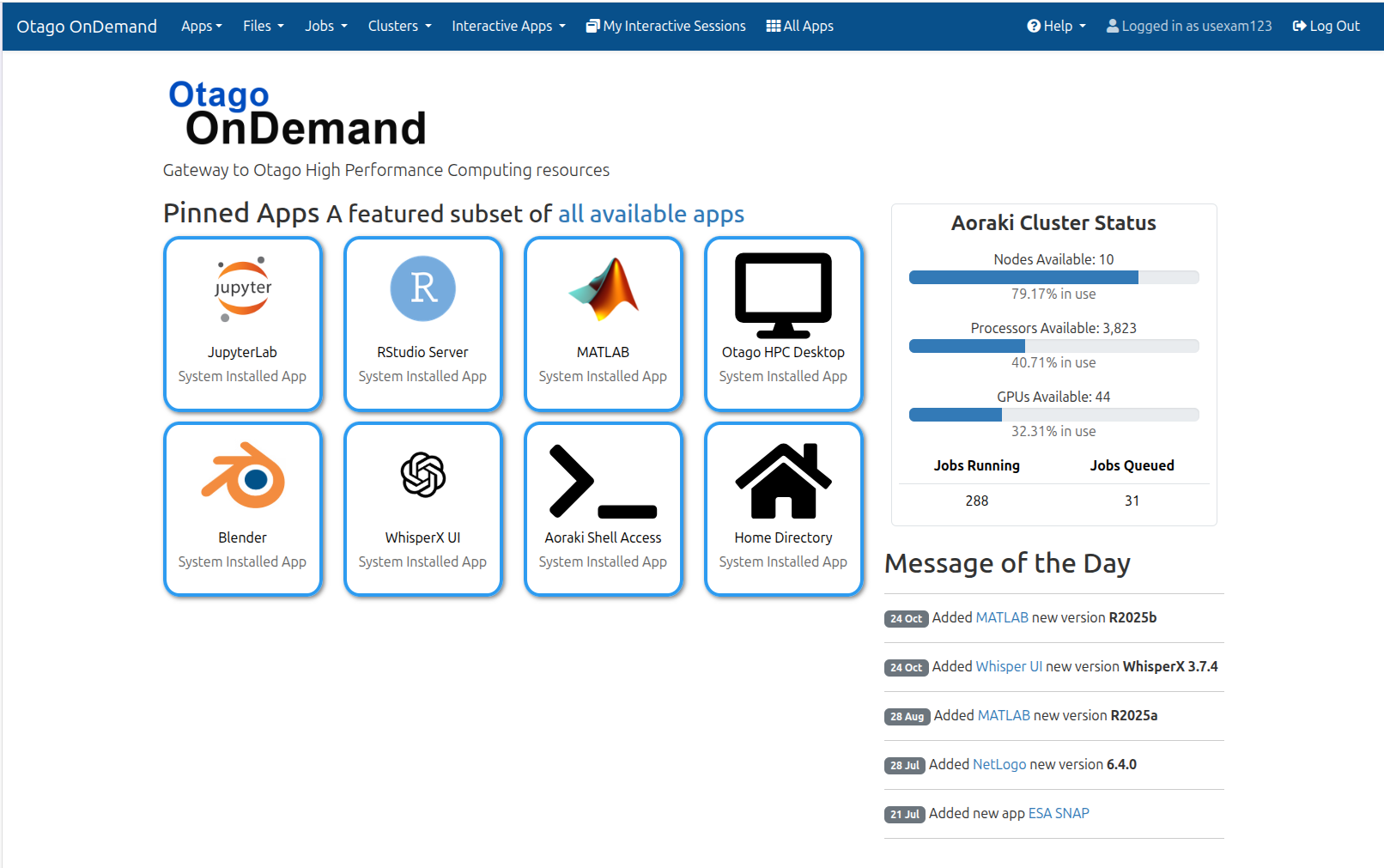
You need an account on the Research Cluster before you can log in. If you do not have one yet, fill in the access form or email the eResearch Support team at rtis.support@otago.ac.nz.
Two portals
A small number of applications have not yet moved to the current portal and remain on the legacy instance at https://ondemand-legacy.otago.ac.nz. See Available Apps for which apps live where.
How OnDemand Uses Slurm
Everything you launch from the Interactive Apps menu runs as a Slurm job on a compute node. OnDemand writes and submits that job for you, so you never have to write a batch script to get a graphical application running.
graph LR;
    A["You fill in a form<br/>in the browser"] --> B["OnDemand writes<br/>a Slurm job script"]
    B --> C["Job is queued<br/>with Slurm"]
    C --> D["Job starts on a<br/>compute node"]
    D --> E["'Connect' button<br/>opens the app"]
When you launch an app you fill in a short form — cores, memory, wall time, whether you need a GPU, and any options specific to that application. Those values become the resource request for the job. Because it is a normal Slurm job:
- It has to queue. If the cluster is busy your session waits until the resources you asked for are free. Asking for less usually means starting sooner.
- It holds its resources for the whole wall time, whether or not you are actively using it. Ask for a realistic wall time and delete the session when you are done.
- It keeps running if you close your browser. Closing the tab disconnects you; it does not end the job.
- It shows up in Slurm like any other job.
squeueandsacctin a shell will list it alongside yoursbatchjobs.
Managing your sessions
Your running and recent sessions are listed under My Interactive Sessions on the dashboard. From there you can reconnect to a session, see how much wall time is left, or click Delete to end it and release the resources.
You can also see them, along with everything you have submitted with sbatch or srun, under Jobs > Active Jobs.
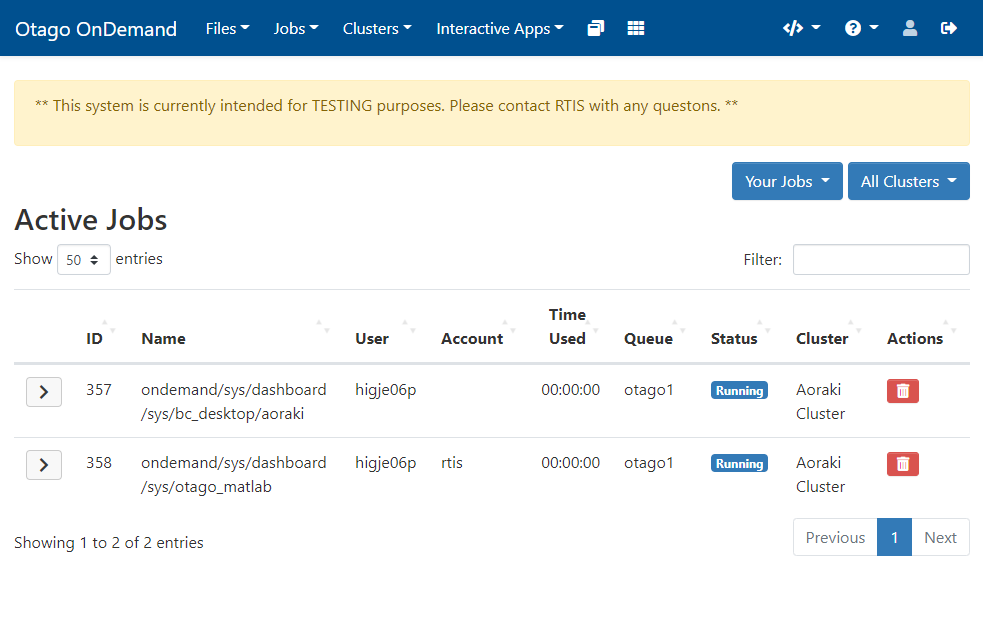
Limits on OnDemand jobs
A few cluster limits apply specifically to jobs started through OnDemand:
- You can have 10 running OnDemand jobs at a time.
- OnDemand jobs are limited to a single node, as are any jobs requesting GPUs.
- OnDemand jobs do not count towards the 5000 submitted-job limit.
See the Cluster Overview for the full set of cluster limits.
Your Data in OnDemand
Sessions run on the cluster itself, so they see the same storage you would see over SSH. The Files menu gives you a browser-based file manager for the locations you are most likely to work in; the rest are reachable from a shell or an HPC Desktop session.
| Location | Path | In the Files menu? | Notes |
|---|---|---|---|
| Home directory | /home/<username> |
Scripts and configuration. Backed up, 40 GB quota. | |
| Projects | /projects/<division>/<school>/<dept>/<group>/ |
Where your working research data should live. Not backed up. | |
| Weka | /weka/users/<username> |
High-throughput scratch, reachable from a shell or desktop session. | |
| Otago HCS | /mnt/auto-hcs/<share> |
Needs a Kerberos ticket (kinit); mount it from a shell or desktop session. |
Copy the data you want to work on into /projects/ first, then run your OnDemand session against it. HCS is not suited to being read from and written to directly during computation.
What's in the Portal
Files
Files > Home Directory (or Projects) opens the file manager. You can browse, create, rename, move and delete files and folders, upload and download, edit text files in the browser, and start a Globus transfer with the Open in Globus button.
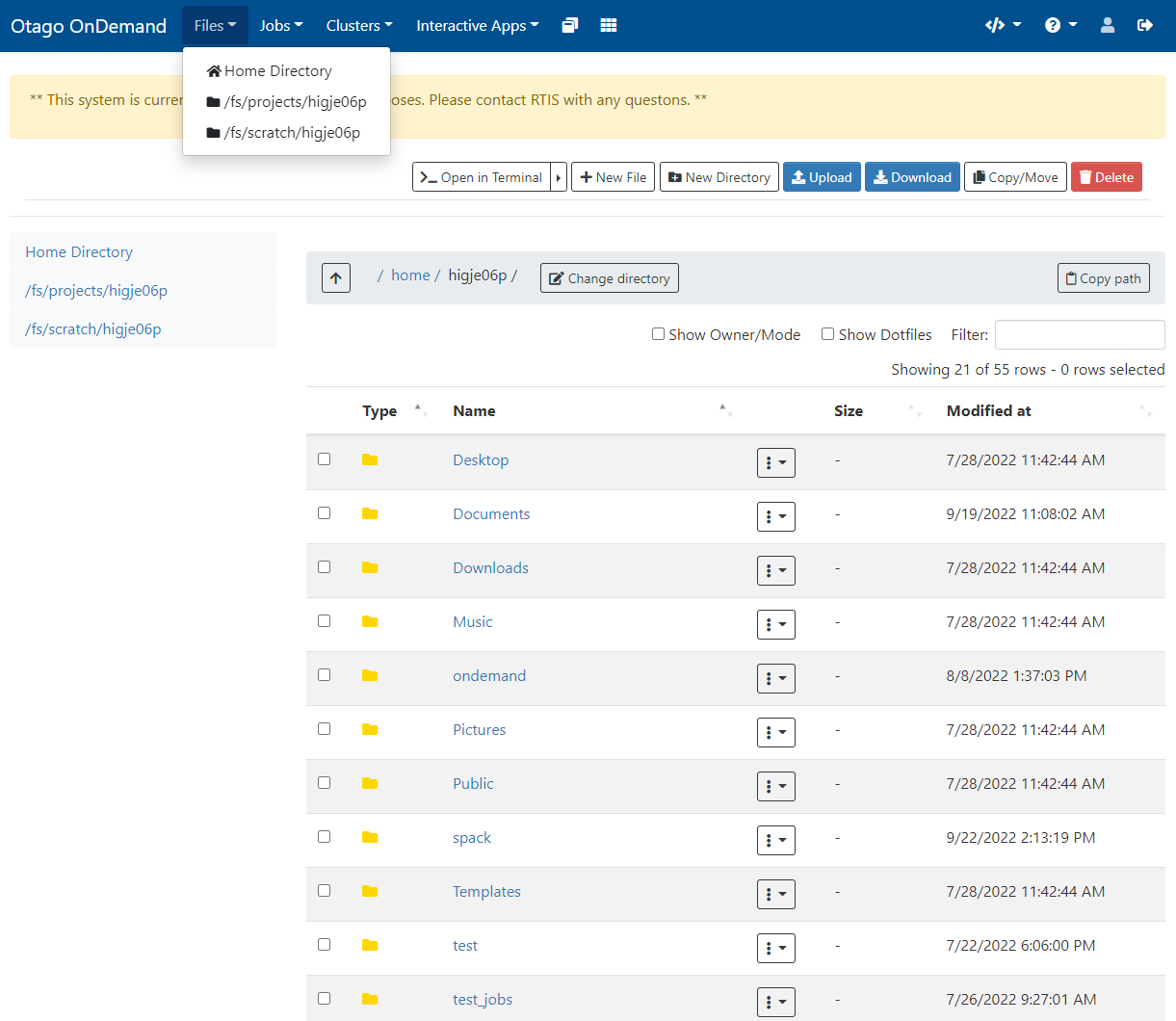
Using the OnDemand File Manager
Jobs
Jobs > Active Jobs lists your queued and running jobs, whatever you started them with, and lets you cancel them. Jobs > Job Composer lets you write and submit a Slurm batch script from the browser — useful once you are ready to move beyond interactive sessions.
Shell Access
Clusters > Aoraki Shell Access opens a terminal on the login node in a browser tab, equivalent to connecting over SSH.
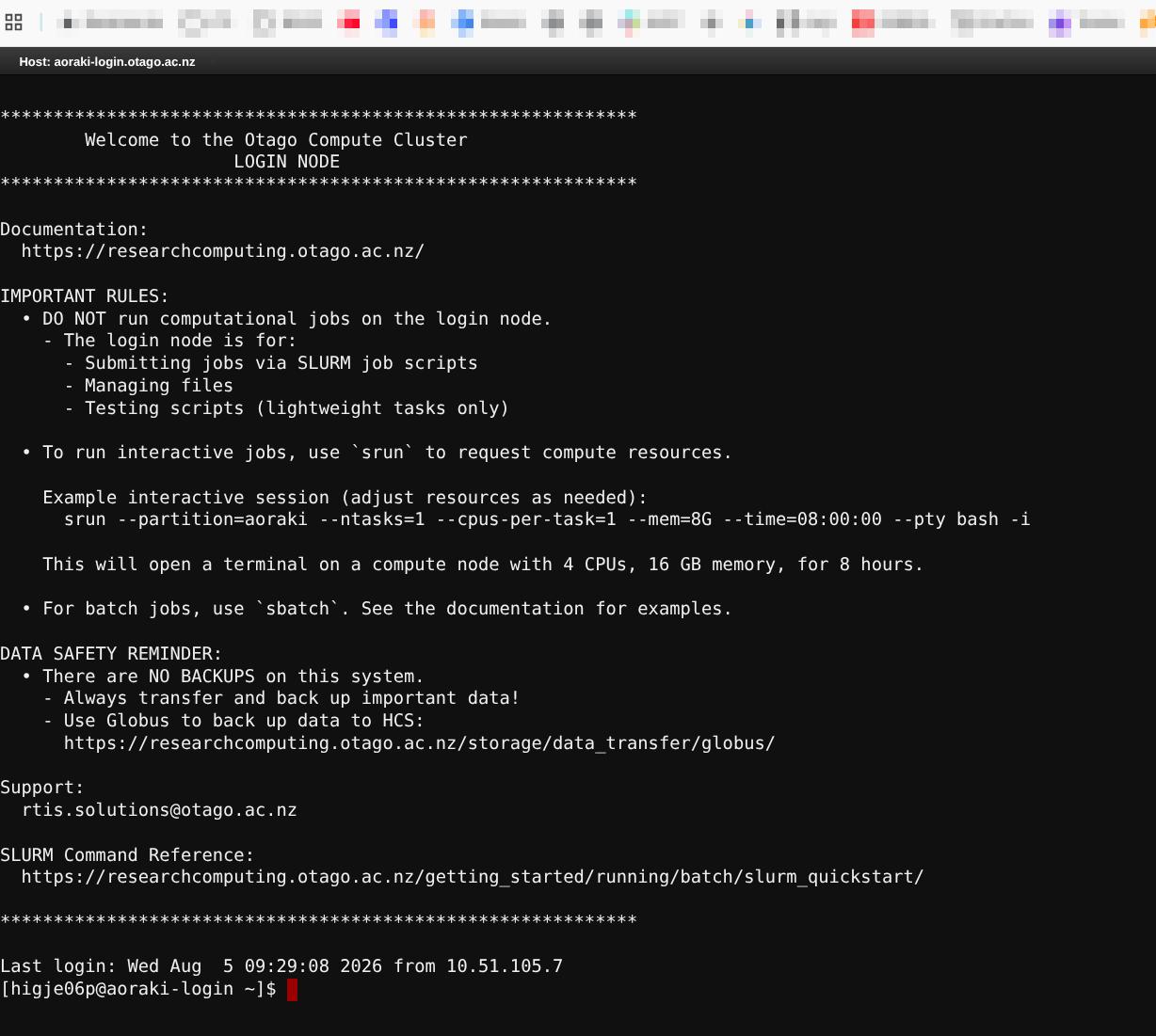
Accessing the Shell through OnDemand
Interactive Apps
The Interactive Apps menu is the list of applications OnDemand can launch for you as Slurm jobs — JupyterLab, RStudio, MATLAB, Fiji, Blender and many more, plus the HPC Desktop.
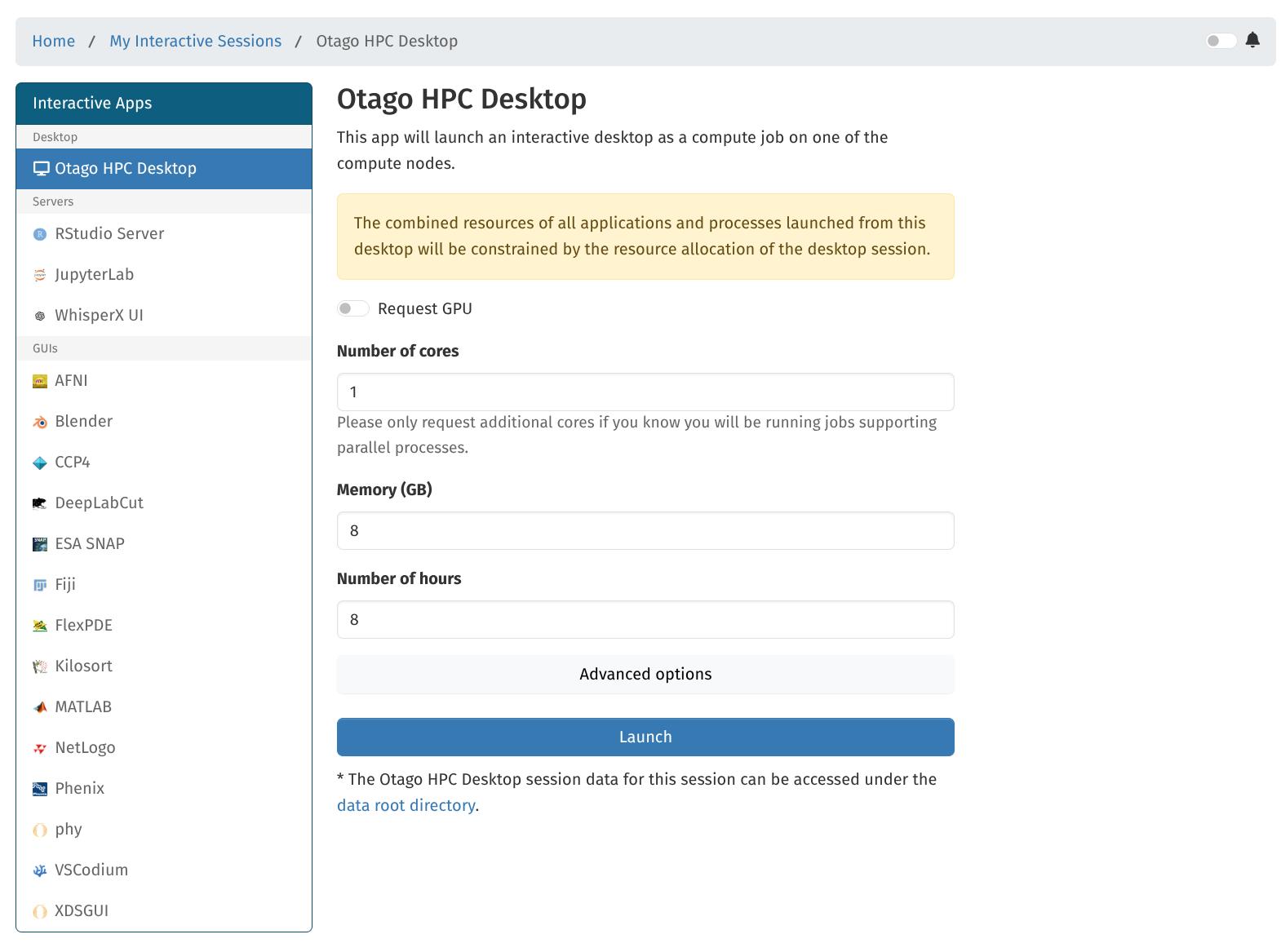
HPC Desktop
The HPC Desktop gives you a full Linux desktop — XFCE or GNOME — running on a compute node, for graphical software that does not have a dedicated OnDemand app of its own.
If the software you need does have its own app (JupyterLab, RStudio, MATLAB and so on), use that instead: those apps are already configured for the job and are simpler to launch. And where your work can be done from the command line with a batch job, prefer that over a desktop session.