OnDemand HPC Desktop
On this Page
- What the HPC Desktop is for, and when to use something else
- Key information when launching HPC Desktop
- What you get once the desktop opens
- How to work with your files from the desktop
The HPC Desktop is an Open OnDemand interactive app that gives you a full Linux desktop running on a compute node, for graphical software that has no dedicated OnDemand app of its own.
Like every OnDemand interactive app, the desktop runs as a Slurm job — the resources you pick on the launch form are the job's resource request, and the session holds them until you delete it or the wall time runs out.
Use a dedicated app where one exists
If the software you need has its own OnDemand app — JupyterLab, RStudio, MATLAB and so on — launch that instead. Those apps come configured for the job and are simpler to start. See Available Apps. Where your work can be done from the command line, a batch job is a better use of cluster resources than a desktop session.
Before You Start
You need access to the Research Cluster. If you do not have it yet, fill in the access form or email the eResearch Support team at rtis.support@otago.ac.nz.
Log in to https://ondemand.otago.ac.nz and choose Otago HPC Desktop from the Interactive Apps menu.
Launching HPC Desktop
When launching the desktop you can customise the computational components to suit your needs by clicking Advanced options. You can choose between two desktop environments, XFCE and GNOME — both give you a terminal, file manager and web browser, so pick whichever you prefer. If you have GPU intensive tasks select the Request GPU button.
When adjusting other components like cores and memory, compare the job you want to run to previous jobs you have run, and keep the reasonable usage limits in mind. Job Efficiency covers how to check whether what you asked for matched what you used.
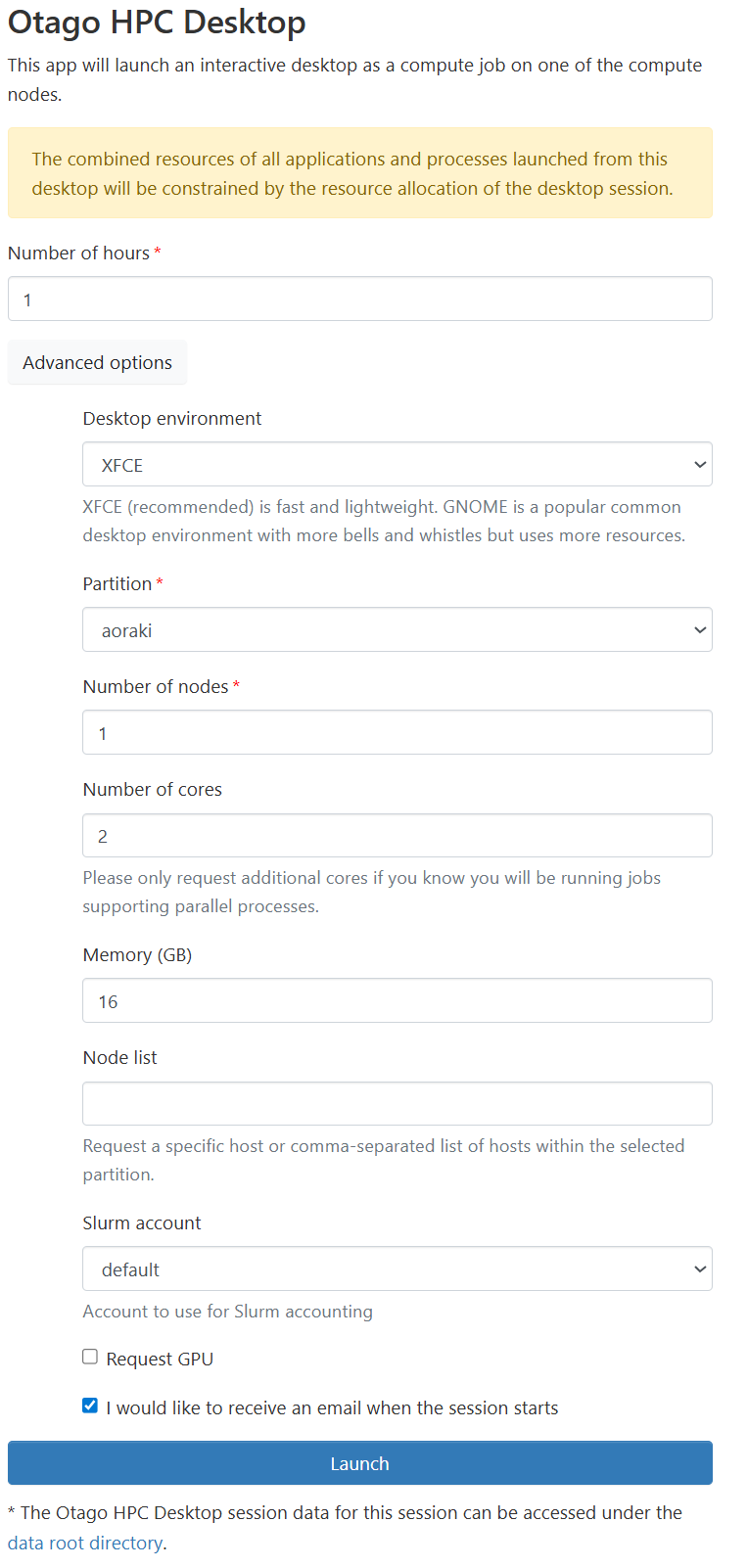
Fill out the form and press Launch. Your session is queued with Slurm and starts once the resources you asked for are free — asking for less usually means starting sooner.
Once the session starts you can set the image compression and quality before connecting. On a low bandwidth connection, increase the compression and decrease the image quality — higher compression costs you some input lag but keeps the desktop usable. If you are unhappy with the defaults you can relaunch the session from this page with different choices.
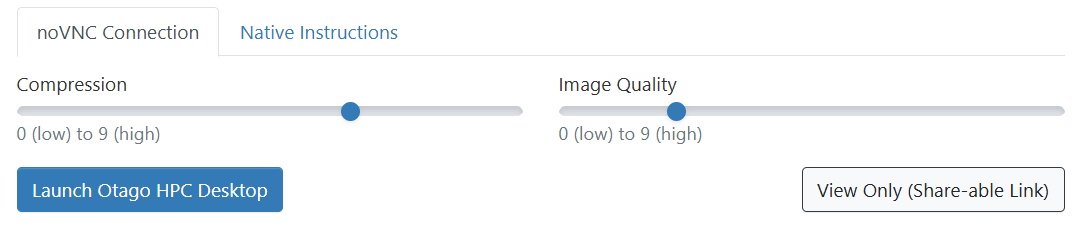
Then press Launch Desktop and the desktop opens in a new tab.
Ending your session
Closing the browser tab does not end the job. Return to My Interactive Sessions on the OnDemand dashboard and click Delete to release the resources.
Using the Desktop
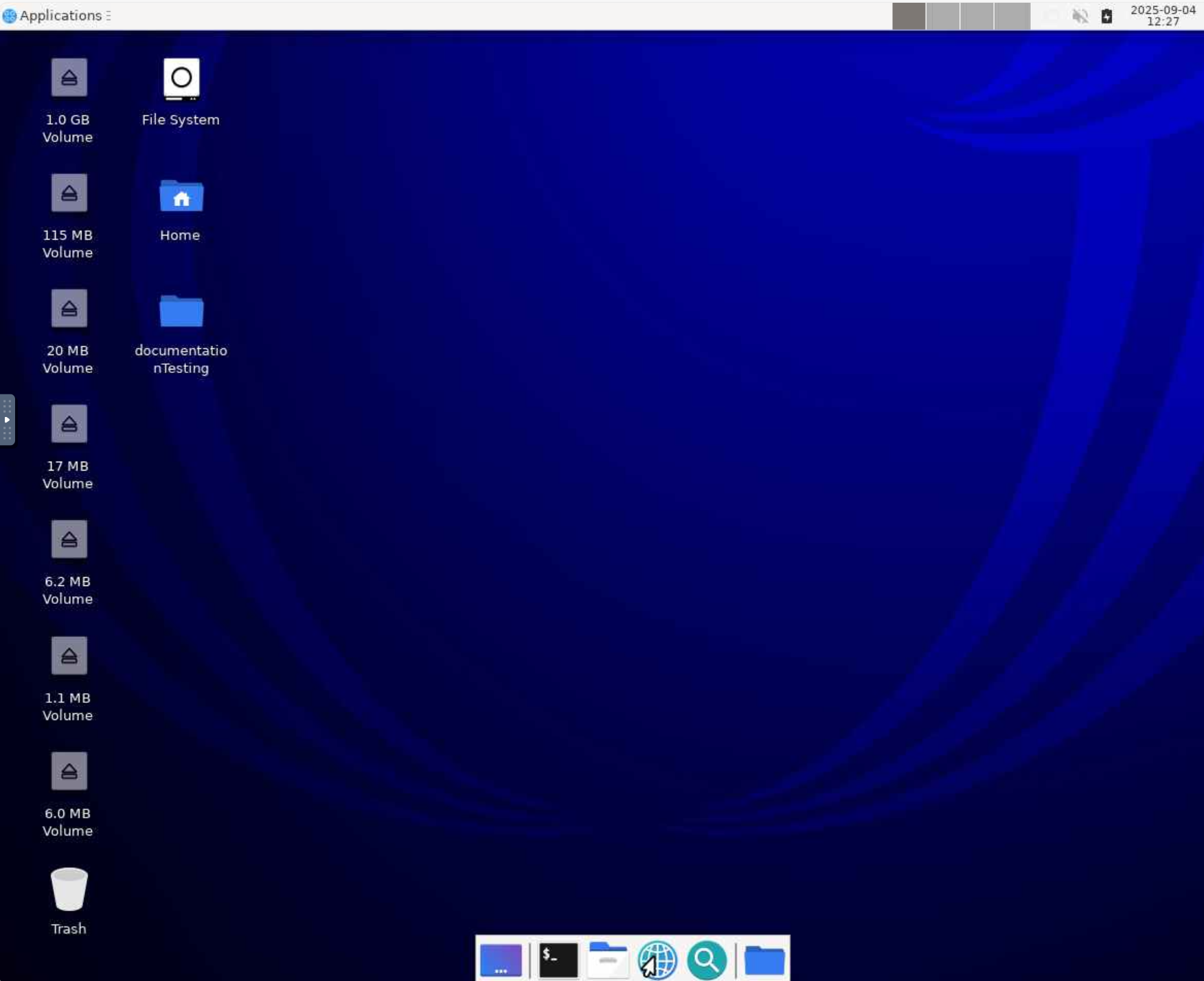
It behaves like a normal Linux desktop, but everything you open inside it — a terminal, the file manager, your graphical application — runs on the compute node, not on your own machine.
The resources available to it are the ones you asked for on the launch form: the cores, memory and GPU you selected are what the session has, and nothing more. If an application inside the desktop needs more than you requested, end the session and launch a new one with a larger request.
Working With Your Files
Your desktop session runs directly on the Research Cluster, so it sees the same storage as any other cluster session — your home directory, your projects directory, and Weka. You can work with them through the desktop's file manager or from a terminal.
To open a terminal, right click anywhere on the desktop and select Open Terminal Here.
Using Otago HCS data
Otago HCS is the recommended long-term home for your research data, but it is not suited to being read from and written to during computation. Stage the data you need into your projects directory, work on it there, and transfer the results back when you are done.
Warning
Connecting to HCS from the cluster is for moving data, not for processing it in place.
Use rclone to do this from a desktop session. It authenticates to HCS with your Kerberos ticket, and can either copy data across or mount your share as a folder you can browse in the desktop's file manager.
See Data Transfer for the other options, including Globus for large transfers.