Accessing the Shell through OnDemand
On this Page
- How to open a shell session from the OnDemand portal
- What you can do in it
- What you should not do in it
Open OnDemand gives you command-line access to the cluster directly from your browser, without installing or configuring an SSH client. It is equivalent to connecting over SSH, and lands you on the same login node.
Opening a Shell Session
- Log in to https://ondemand.otago.ac.nz.
-
From the top menu, go to Clusters > Aoraki Shell Access. There is also an Aoraki Shell Access tile among the pinned apps on the dashboard.
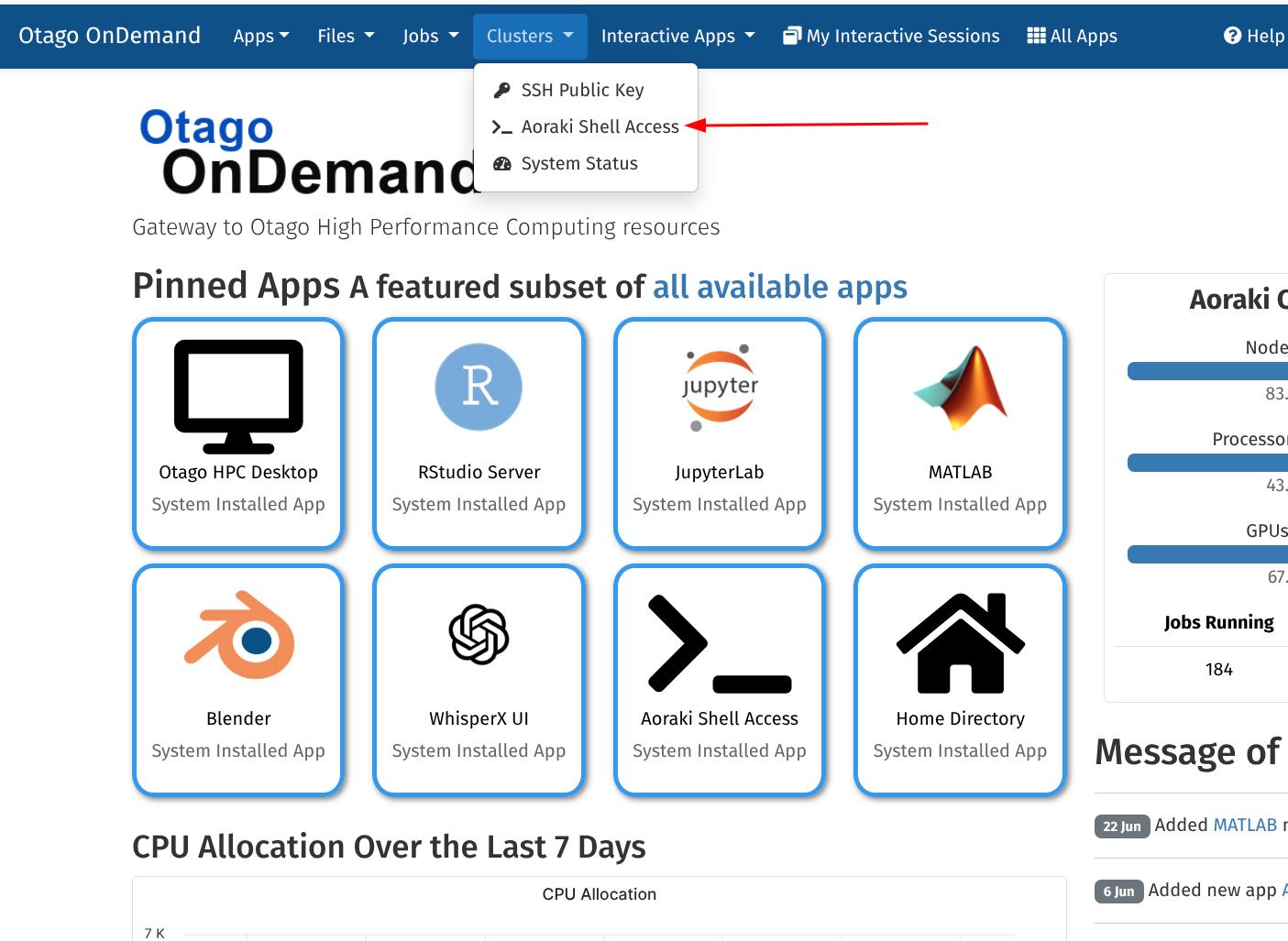 }{ .left
 -
A new tab opens with a terminal session on the
aoraki-loginnode, showing the login banner and your shell prompt.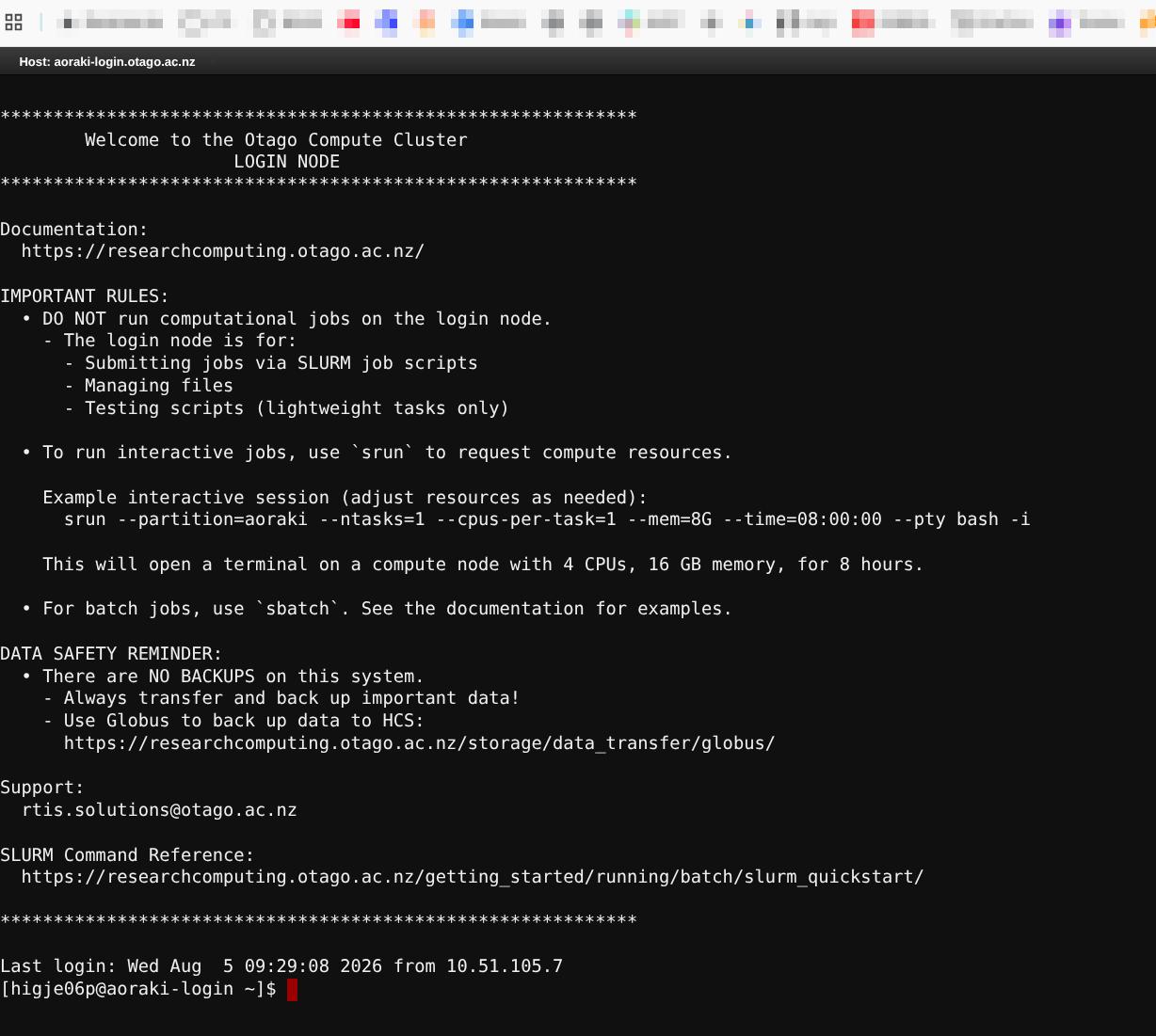 }{ .left
What You Can Do
- Run command-line programs and scripts.
- Submit and monitor Slurm jobs with
sbatch,squeueandsacct— including the jobs behind your OnDemand interactive sessions. - Navigate and manage your files with standard Linux commands, and reach storage the File Manager does not cover, such as Weka and Otago HCS.
- Use text editors such as
nano,vimoremacs. - Load software with
module, or activate a conda or Apptainer environment — see the Software Overview.
The shell runs on the login node
The login node is shared by everyone and is not for computation. Do not run heavy work directly in this terminal — submit it as a batch job, or start an HPC Desktop or other interactive app so your work runs on a compute node.
Tips
- Your shell session does not carry a Kerberos ticket automatically. If you need Otago HCS, run
kinitfirst. - You can open multiple shell sessions at once.
- If you are disconnected, just reconnect through the portal — anything you submitted with
sbatchkeeps running.