Using the OnDemand File Manager
On this Page
- What the OnDemand File Manager is
- How to open it
- What you can do with it
- When to use something else instead
The OnDemand File Manager is the browser-based file browser built into the Open OnDemand portal. It is the quickest way to look at, edit, upload and tidy up files on the cluster without opening a terminal.
Opening the File Manager
- Log in to https://ondemand.otago.ac.nz.
- From the top menu, select Files > Home Directory, or Files > Projects for your group's project storage.
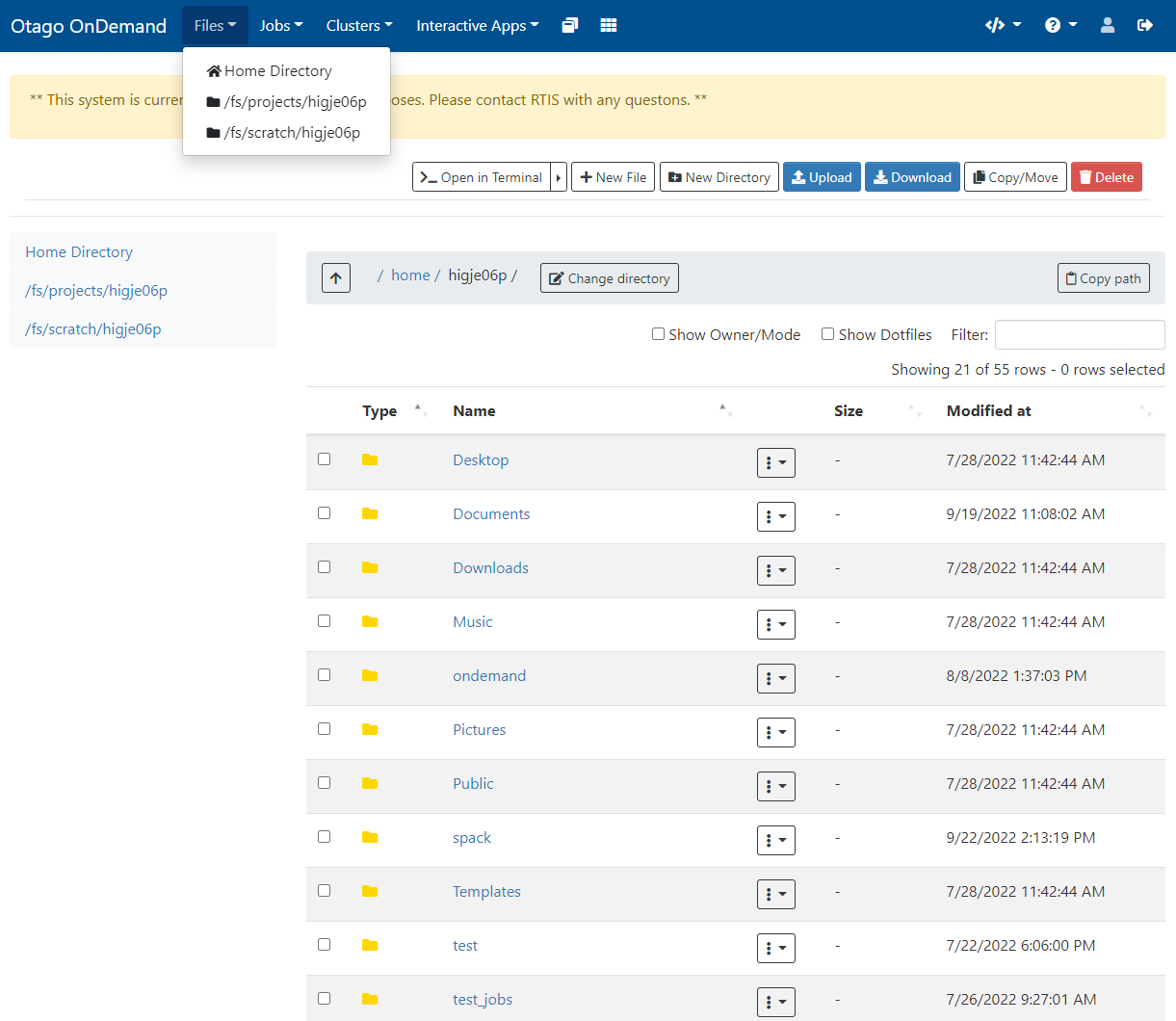 }{ .left
What You Can Do
- Browse directories: Navigate through your home directory and your projects storage.
- Upload and download: Click Upload to add files from your computer, or select files and click Download to save them locally.
- Create and delete: Create new folders and files, and delete items you no longer need.
- Rename and move: Right-click a file or folder to rename or move it.
- Edit files: Click a text file to open it in the built-in editor for quick changes.
- Hand off to Globus: Use the Open in Globus button to start a Globus transfer from the directory you are in.
What It Can't Reach
The Files menu covers your home and projects directories. Other storage on the cluster is reachable, but not from this file browser:
- Weka — use a shell session or an HPC Desktop.
- Otago HCS — needs a Kerberos ticket, so mount it from a shell session or an HPC Desktop.
When to Use Something Else
The file manager is built for everyday operations — a handful of files at a time. For anything bigger:
- Large or bulk transfers: use Globus, rclone, or rsync and scp.
- Anything scripted or repeated: use a shell session and do it on the command line.
See Data Transfer for a comparison of the options.